 PickPundit
📦 Comment choisir les meilleures souris ergonomiques : guide d'achat complet

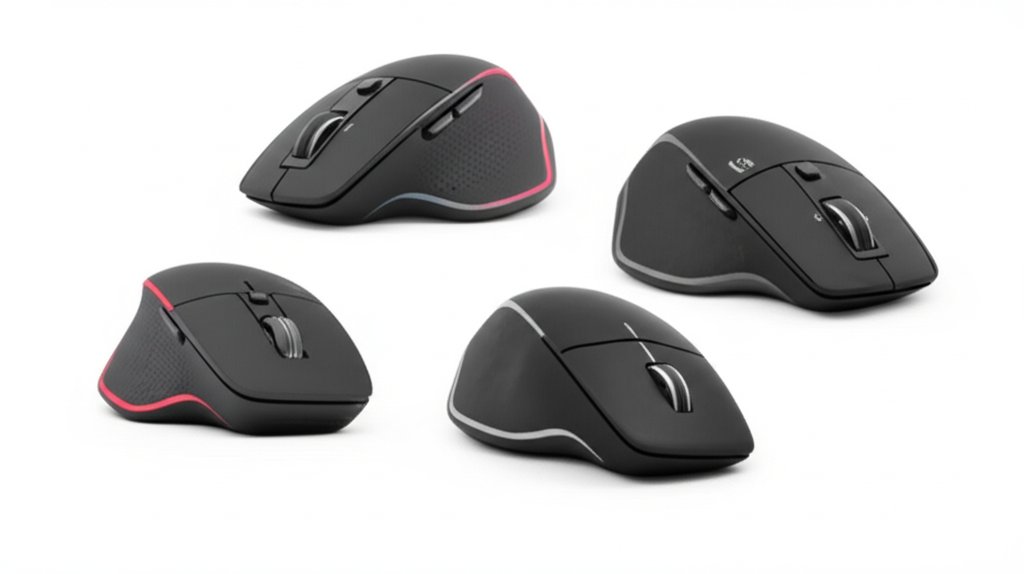
Complete ergonomic mice buying guide. Learn what features matter, compare top products, and find the best ergonomic mice for your budget.
View Top Picks →Table of Contents
Ergonomic Mice: When Vertical Design Actually Helps (And When It Doesn't)
Ergonomic mice promise to reduce wrist strain, prevent carpal tunnel syndrome, and improve computing comfort. The vertical mouse design—hand positioned in "handshake" orientation rather than flat palm-down—represents the most visible ergonomic innovation. But like many ergonomic claims, the benefits are situational rather than universal.
Understanding when ergonomic design helps and when it's unnecessary prevents both suffering through preventable strain and spending on solutions to problems you don't have.
The Pronation Problem
Traditional mice require forearm pronation—rotating the forearm so the palm faces down. This position twists the radius and ulna bones in the forearm, creating potential stress during extended use.
Vertical mice position the hand in neutral orientation—thumb up, palm facing inward—eliminating this twist. For users experiencing forearm discomfort from traditional mice, this repositioning provides genuine relief.
However, forearm pronation isn't inherently harmful for most people. Office workers using mice for normal business applications often experience no discomfort from traditional designs. The vertical solution addresses a problem that not everyone has.
Who Actually Benefits
Ergonomic mice provide clear benefits for:
Users with existing wrist/forearm issues: Those already experiencing discomfort from mouse use often find immediate relief from vertical positioning.
Heavy mouse users: Graphic designers, CAD operators, and others using mice 6+ hours daily accumulate strain that occasional users don't experience.
Gamers with extended sessions: Multi-hour gaming sessions create repetitive stress that casual gaming doesn't approach.
Prevention-focused professionals: Some users adopt ergonomic equipment proactively before problems develop, particularly in high-use professions.
Users who probably don't need ergonomic mice:
- Occasional computer users (1-2 hours daily)
- Those without current discomfort
- Laptop users who primarily use trackpads
The Adjustment Period
Switching to vertical mice requires relearning muscle memory. Cursor control comes from different muscles in vertical orientation than horizontal. Initial use feels awkward, and precision may suffer for days or weeks.
Most users adapt within 1-2 weeks of consistent use. However, some never achieve the same precision with vertical mice that they had with traditional designs. Graphic designers and others requiring pixel-perfect control should evaluate carefully whether vertical positioning suits precision work.
For general office use—clicking interface elements, navigating documents—the adjustment period resolves to equivalent comfort. For precision applications, individual assessment is necessary.
Wireless vs Wired Considerations
Ergonomic mice increasingly default to wireless designs, recognizing that cable drag can create its own strain—pulling against mouse movement and requiring compensating force.
The 2.4GHz wireless connections on mice like the Acer, Anker, and TECKNET models provide reliable, lag-free operation for office use. Gaming at competitive levels may still favor wired connections for absolute latency minimization, but casual gaming and productivity work don't require wired reliability.
Bluetooth options (like the ProtoArc EM11) enable connection without USB dongle occupation, valuable for laptops with limited ports. The trade-off is slightly higher latency and potential connection variability depending on Bluetooth implementation.
DPI and Precision Settings
DPI (dots per inch) determines cursor movement per physical mouse movement. Higher DPI means less physical movement required for screen traversal.
Ergonomic mice typically offer adjustable DPI (800-2400 being common ranges) allowing customization. Ergonomic principle suggests moderate DPI—enough cursor speed to minimize large arm movements while maintaining control for precise targeting.
Very high DPI (4800+) enables cursor movement from small finger motions alone, potentially reducing arm strain further. However, precision suffers at extreme DPI; small hand tremors become visible cursor movement.
Most users find 1200-1600 DPI comfortable for productivity work. Experimentation with available settings identifies personal preference.
Button Configuration
Ergonomic mice typically maintain standard button configurations—left click, right click, scroll wheel—with ergonomic positioning rather than novel button arrangements.
Side buttons for forward/back navigation exist on most models, positioned for thumb access. Programmable buttons enable application-specific functions through accompanying software.
The button location matters more than button count for ergonomic purposes. Buttons requiring finger stretching or hand repositioning undermine ergonomic benefit. Quality ergonomic designs place all buttons within natural hand position.
Build Quality and Comfort
Ergonomic mice need comfortable resting surfaces since hands maintain contact longer than with traditional mice where grip may shift. Rubberized surfaces, contoured thumb rests, and appropriate sizing for hand dimensions all affect comfort.
Budget ergonomic mice ($18-25) typically use molded plastic with minimal surfacing. Premium options include textured rubber grips, adjustable palm rests, and more refined contouring.
Hand size particularly affects vertical mouse comfort. These mice have fixed dimensions—too large creates finger stretching; too small creates cramped grip. Some manufacturers offer size variants; most offer single sizes that fit "average" hands.
The Trackball Alternative
Trackball mice represent another ergonomic approach—stationary mouse body with thumb- or finger-operated ball for cursor movement. This eliminates arm movement entirely, potentially reducing strain more than vertical mice.
Trackballs require greater adjustment than vertical mice and suit some workflows better than others. They excel for precise movement in limited space (small desks, couch computing) but feel unusual for users accustomed to whole-hand mouse movement.
Considering trackballs alongside vertical mice provides more complete ergonomic evaluation. Some users who don't adapt to vertical design find trackballs more natural, and vice versa.
Price vs Value Analysis
Ergonomic mice span from $18-25 budget options to $80+ premium designs. The core ergonomic value—vertical hand positioning—exists at all price points. Premium pricing buys:
- Better build materials (metals, premium plastics)
- More sophisticated button mechanisms
- Advanced features (adjustable palm rests, weight customization)
- Longer warranty and brand support
For users testing ergonomic concepts, budget options like the ProtoArc at $18 or Anker at $21 provide legitimate ergonomic benefit at minimal investment. Confirmed believers in vertical design may find premium upgrades worthwhile for daily-use comfort.
The Standing Desk Consideration
Ergonomic mice interact with overall workstation ergonomics. Users with standing desks, adjustable keyboard trays, or monitor arms are already optimizing their work environment—ergonomic mice complement these investments.
Users with poorly configured workstations may find mice alone insufficient. Mouse ergonomics can't compensate for monitor height forcing neck strain or keyboard position creating shoulder tension. Holistic ergonomic assessment often matters more than individual component optimization.
Practical Recommendations
For users with existing discomfort: Ergonomic mice are worth trying—the $20-25 investment is trivial compared to physical therapy costs if strain becomes serious. Start with budget options to confirm benefit before premium investment.
For heavy mouse users without current issues: Preventive adoption has merit if professional success depends on computing capability. The modest investment may prevent future problems.
For occasional computer users: Traditional mice are probably fine. The ergonomic benefits don't manifest with limited use, and adjustment costs aren't justified.
For precision work: Test before committing. Some users maintain precision with vertical design; others don't. A two-week trial period reveals personal adaptation potential.
Frequently Asked Questions
Que dois-je rechercher lors de l'achat de souris ergonomiques ?
Les facteurs clés comprennent la qualité de construction, les avis des utilisateurs et le rapport qualité-prix. Les options les mieux notées comme la souris ergonomique Acer Acer sans fil (4,5★ de 194 avis) démontrent à quoi ressemble la qualité dans cette catégorie.
Combien coûtent généralement les souris ergonomiques ?
Les prix varient de 10 $ à 90 $, avec la plupart des options de qualité autour de 31 $. Les options budgétaires inférieures à 15 $ fonctionnent pour une utilisation occasionnelle, tandis que les modèles premium de plus de 47 $ offrent une meilleure durabilité et des fonctionnalités.
Quelles souris ergonomiques sont les plus populaires en ce moment ?
L'Acer Ergonomic Mouse Wireless est actuellement le mieux noté avec 4,5★ à partir de 194 avis vérifiés. Consultez notre comparaison complète sur /best/ergonomic-mice pour tous les meilleurs choix.


