 PickPundit
📦 כיצד לבחור את תחנות העגינה הטובות ביותר: מדריך קנייה מלא

Complete docking stations buying guide. Learn what features matter, compare top products, and find the best docking stations for your budget.
View Top Picks →Table of Contents
Docking Stations: Expanding Laptop Connectivity
Docking stations transform laptops into desktop-like workstations, adding monitors, peripherals, and connectivity that ultrabooks sacrifice for portability. Understanding port types, power delivery, and monitor support prevents purchasing docks that don't support intended configurations.
Dock Types and Connections
Docking stations connect through different interfaces:
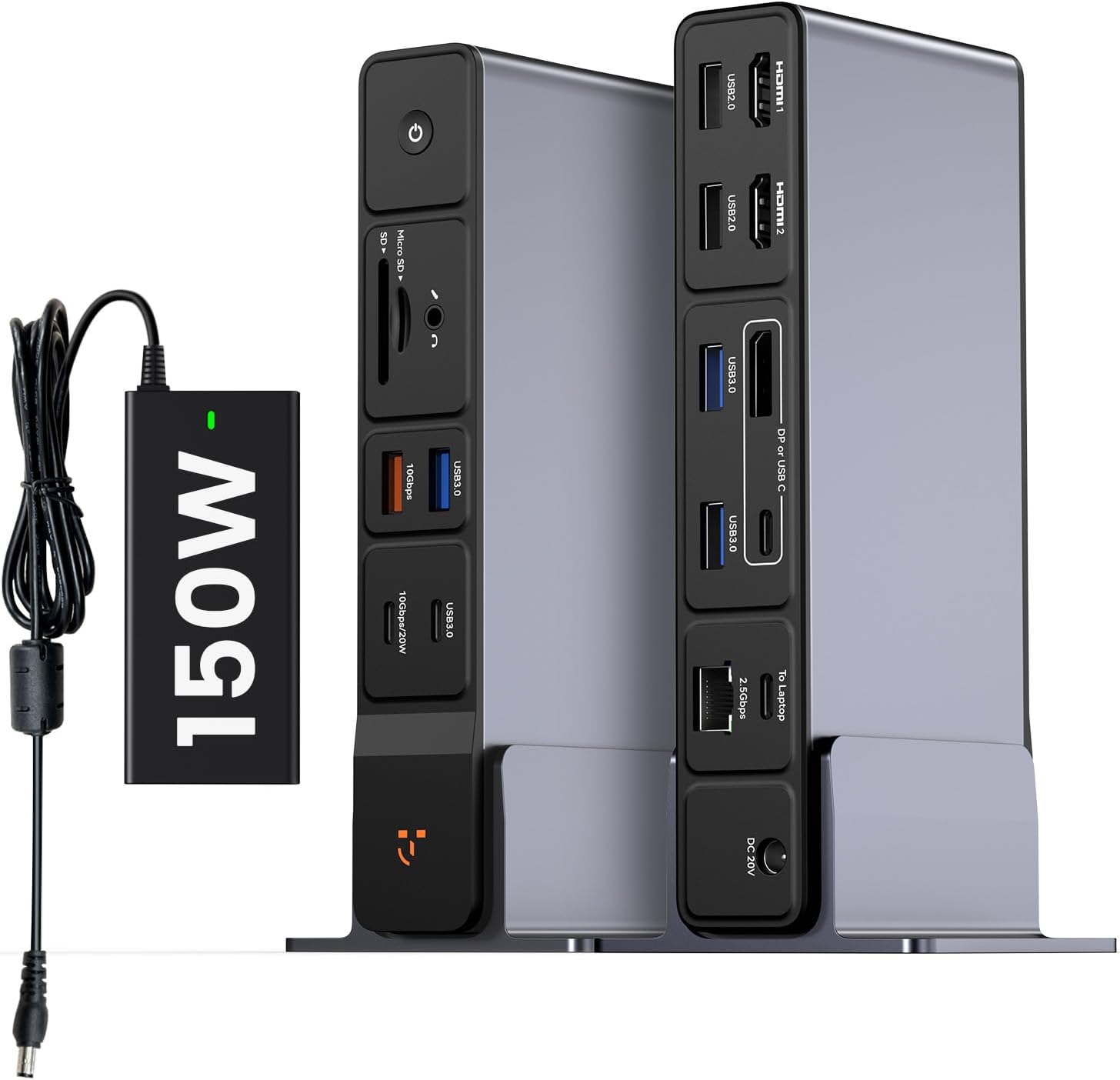
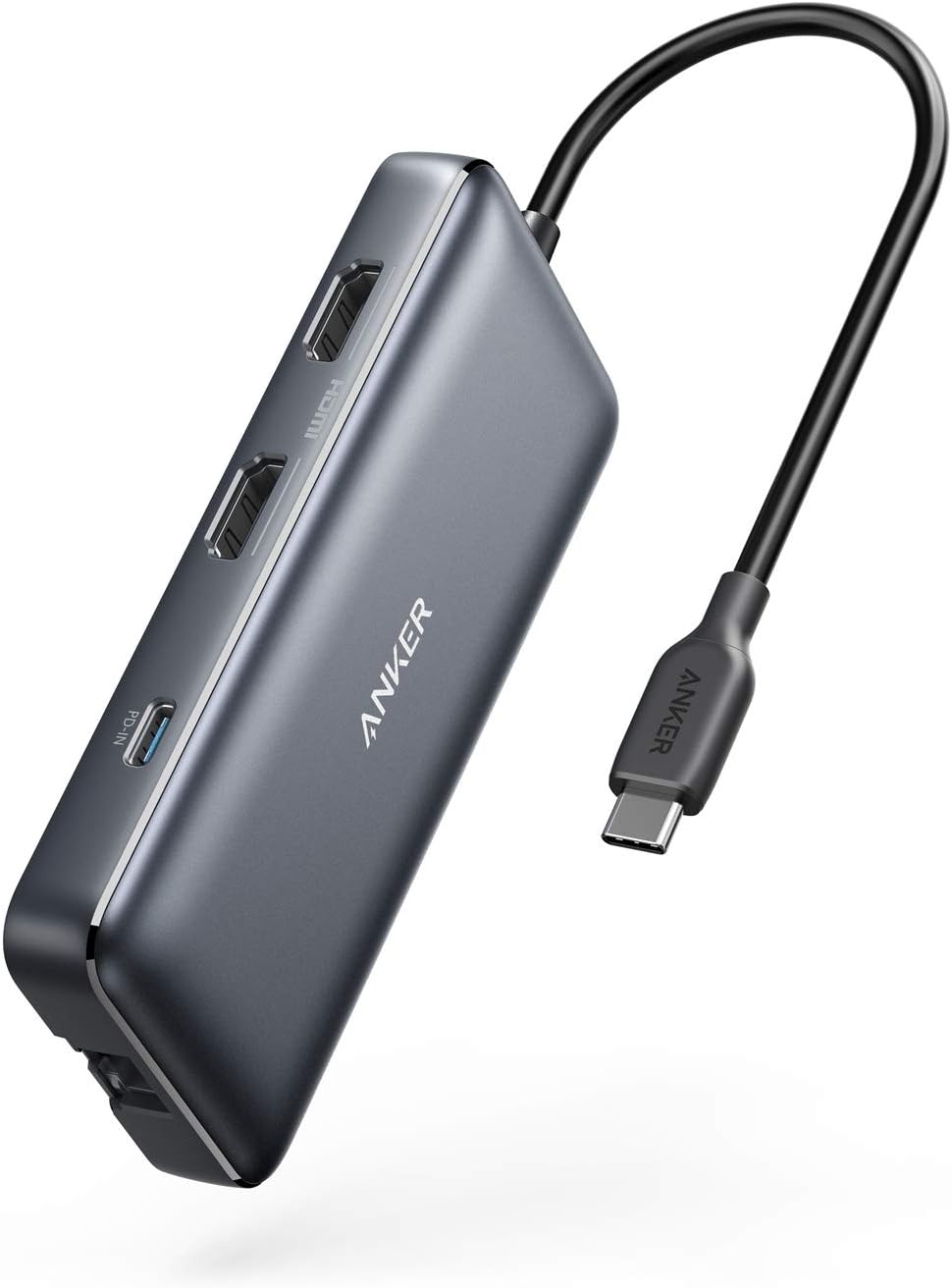
USB-C/Thunderbolt docks (like the TobenONE at $100-170 and Anker at $54) use single-cable connections for power, data, and display. They're the current standard for modern laptops.
USB-A docks connect via traditional USB ports with separate power and display connections—adequate for older laptops but limited bandwidth.
Proprietary docks (Dell, Lenovo, HP) connect through brand-specific ports, providing seamless integration with matched laptops but no cross-compatibility.
For modern laptops, USB-C docks provide the best balance of compatibility and capability.
Thunderbolt vs USB-C
These similar-looking connections differ significantly:
Thunderbolt 3/4 provides 40Gbps bandwidth, supporting multiple 4K displays, fast data transfer, and full power delivery. Premium but capable.
USB-C 3.2 provides 10-20Gbps bandwidth—adequate for dual monitors and standard peripherals but may limit high-bandwidth setups.
USB-C 2.0 provides minimal bandwidth—barely adequate for single monitor setups.
The TobenONE's "18-in-1" design works through USB-C with bandwidth allocation across all functions.
Monitor Support Reality
Multi-monitor marketing can be misleading:
"Triple 4K" claims like TobenONE's require understanding resolution and refresh rate limits. Three 4K displays at 30Hz may be possible; three at 60Hz may not be.
Display protocols (DisplayPort Alt Mode, HDMI, etc.) affect what connections actually work.
Laptop GPU capabilities ultimately determine maximum display support regardless of dock capabilities.
Extended vs mirrored: Dock specs reference extended desktop; mirrored display has different requirements.
Verify your laptop's USB-C/Thunderbolt display capabilities before assuming dock monitor claims apply to your system.
Power Delivery
Docks can charge laptops while connected:
Power delivery wattage must match or exceed laptop requirements. 65W laptops need 65W+ power delivery; 100W laptops need 100W+ delivery.
USB-C PD standards negotiate power levels—mismatched power may slow-charge rather than maintain while running.
Pass-through power from dock to laptop differs from dock's own power consumption.
The Anker at $54 likely provides lower power delivery than the premium TobenONE options—verify wattage matches your laptop requirements.
Port Inventory
Docks expand connectivity significantly:
Display outputs (HDMI, DisplayPort, USB-C video) connect monitors.
USB-A ports connect legacy peripherals—mice, keyboards, webcams.
USB-C ports connect modern peripherals and may provide power to devices.
SD card readers convenient for photographers and content creators.
Ethernet provides wired networking for laptops lacking built-in ports.
Audio jacks may be separate from laptop audio, useful for permanent desk setups.
The "18-in-1" designation indicates numerous ports—verify specific ports match your peripheral needs.
Laptop Compatibility
Not all docks work with all laptops:
USB-C video output isn't universal—some USB-C ports don't support display output.
Thunderbolt requirements mean Thunderbolt docks may not work with non-Thunderbolt USB-C laptops.
MacBook considerations: Apple's USB-C implementation has specific quirks—verify Mac compatibility for intended docks.
Windows laptop variations: USB-C capabilities vary by manufacturer and model.
Quality and Reliability
Dock quality varies significantly:
Cheap docks may work initially but fail under load—overheating, disconnection, and compatibility issues.
Brand reliability (Anker, CalDigit, Plugable) indicates consistent manufacturing and support.
Thermal management affects long-term reliability—docks running hot may fail sooner.
Driver requirements: Some docks need driver installation; others work plug-and-play.
The Anker at $54 represents reliable mid-range quality; unknown brands at similar prices may prove problematic.
Workspace Configuration
Dock placement and setup matter:
Cable management simplifies with docks—one cable to laptop, organized desk connections.
Dock positioning should consider heat dissipation and cable routing.
Quick-disconnect workflow enables laptop mobility while maintaining desk setup.
Monitor arm integration with dock creates clean desk arrangements.
Multiple Display Complexity
Adding monitors involves trade-offs:
Bandwidth limitations may force reduced resolution or refresh rates as monitors increase.
Mixed display configurations (different resolutions/sizes) may affect usability.
Gaming considerations: High refresh rates for gaming may conflict with multi-monitor productivity setups.
Color-critical work: Verify color accuracy isn't compromised through dock connections.
Budget vs Premium Trade-offs
Price affects capability:
Budget docks ($30-60): Limited bandwidth, fewer ports, lower power delivery. Adequate for single-monitor, basic peripheral needs. The Anker at $54 fits here.
Mid-range docks ($75-150): Better bandwidth, more ports, adequate power delivery. Dual-monitor support with reasonable peripherals.
Premium docks ($150-300+): Maximum bandwidth (Thunderbolt), triple-monitor support, highest power delivery, best build quality. The TobenONE at $170 positions here.
Match spending to actual requirements—triple-monitor support wastes money for single-monitor users.
Practical Recommendations
For single-monitor setups: Budget docks ($40-60) from reliable brands. Don't overspend for unused capability.
For dual-monitor productivity: Mid-range docks ($75-125) with verified dual-display support for your laptop.
For triple-monitor or creative work: Premium Thunderbolt docks ($150+) from established brands with verified laptop compatibility.
For MacBook users: Verify Mac-specific compatibility—Apple's USB-C implementation can be particular.
For power users: Consider laptop power requirements carefully—underpowered docks create frustrating charging issues.
The fundamental rule: verify your laptop's USB-C capabilities before purchasing. Dock features mean nothing if your laptop can't utilize them.
Frequently Asked Questions
מה עלי לחפש בקניית תחנות עגינה?
גורמים מרכזיים כוללים איכות בנייה, ביקורות משתמשים ותמורה לכסף. אפשרויות בדירוג הגבוה ביותר כמו מסכי Tobenone Tobenone USB C Docking Station 3 (4.7★ מתוך 48 ביקורות) מדגימות איך נראית איכות בקטגוריה זו.
כמה עולות בדרך כלל תחנות עגינה?
המחירים נעים בין 10 ל-270 דולר, עם רוב האפשרויות האיכותיות בסביבות 101 דולר. אפשרויות תקציב מתחת ל-$15 עובדות לשימוש מזדמן, בעוד שדגמי פרימיום מעל 152$ מציעים עמידות ותכונות טובות יותר.
אילו תחנות עגינה הכי פופולריות כרגע?
מסכי TobenOne USB C Docking Station 3 מדורגים כרגע עם 4.7★ מתוך 48 ביקורות מאומתות. בדוק את ההשוואה המלאה שלנו ב-/best/stations עבור כל הבחירות המובילות.